
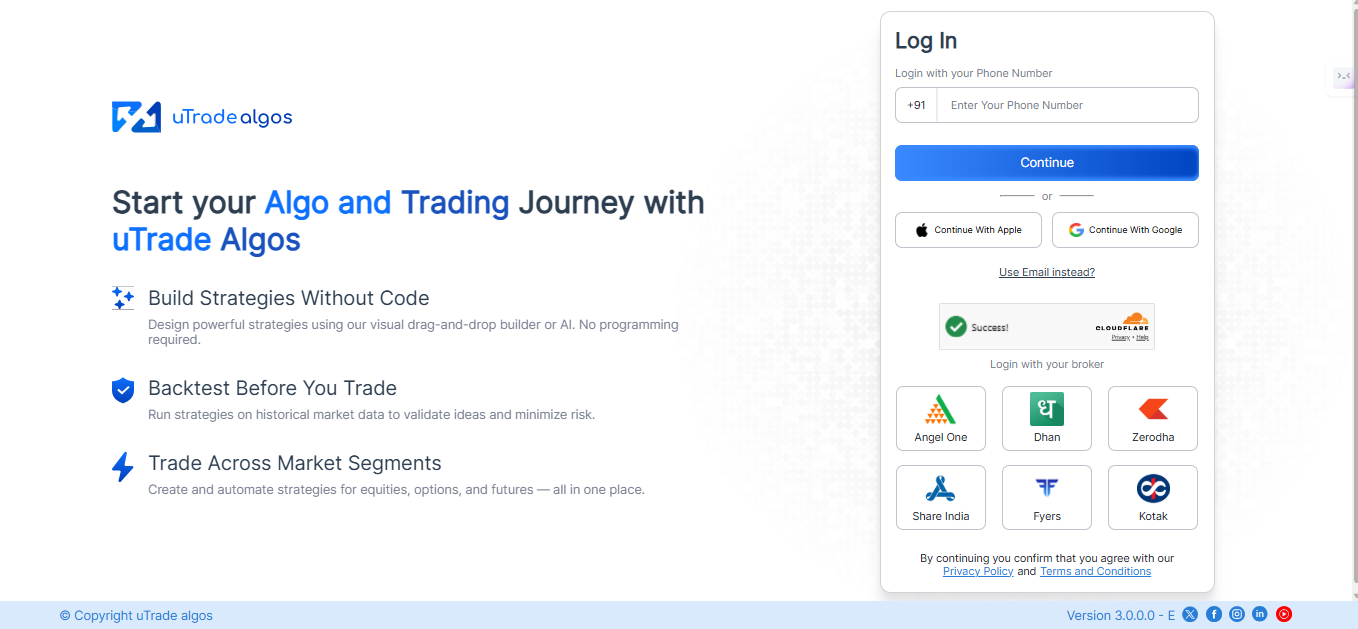
1. Go to uTrade Algos and log in to your account.
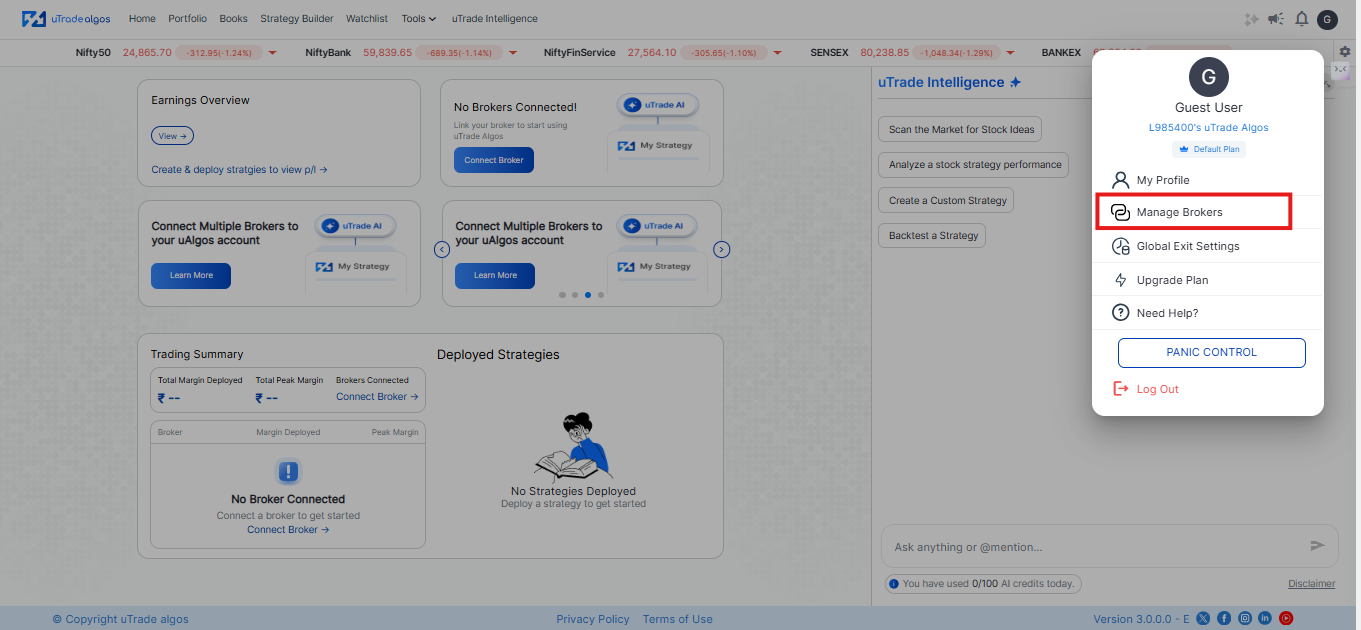
2. Click on the Profile icon at the top-right corner of the screen and select Manage Brokers.
Keep this page open — you will return here after completing the Kotak API setup.
3. API Creation on Kotak neo:
A new application will be created with an “Access Token” under it.
Important: Save/copy this Access Token — it will be required while setting up Kotak in uTrade Algos.
4. TOTP Activation on Kotak (Mandatory):
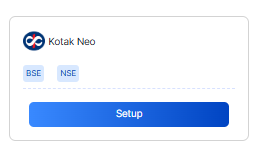
5. Return to uTrade Algos → Manage Brokers. From the list of brokers on uTrade Algos, locate Kotak and click on the Setup button.
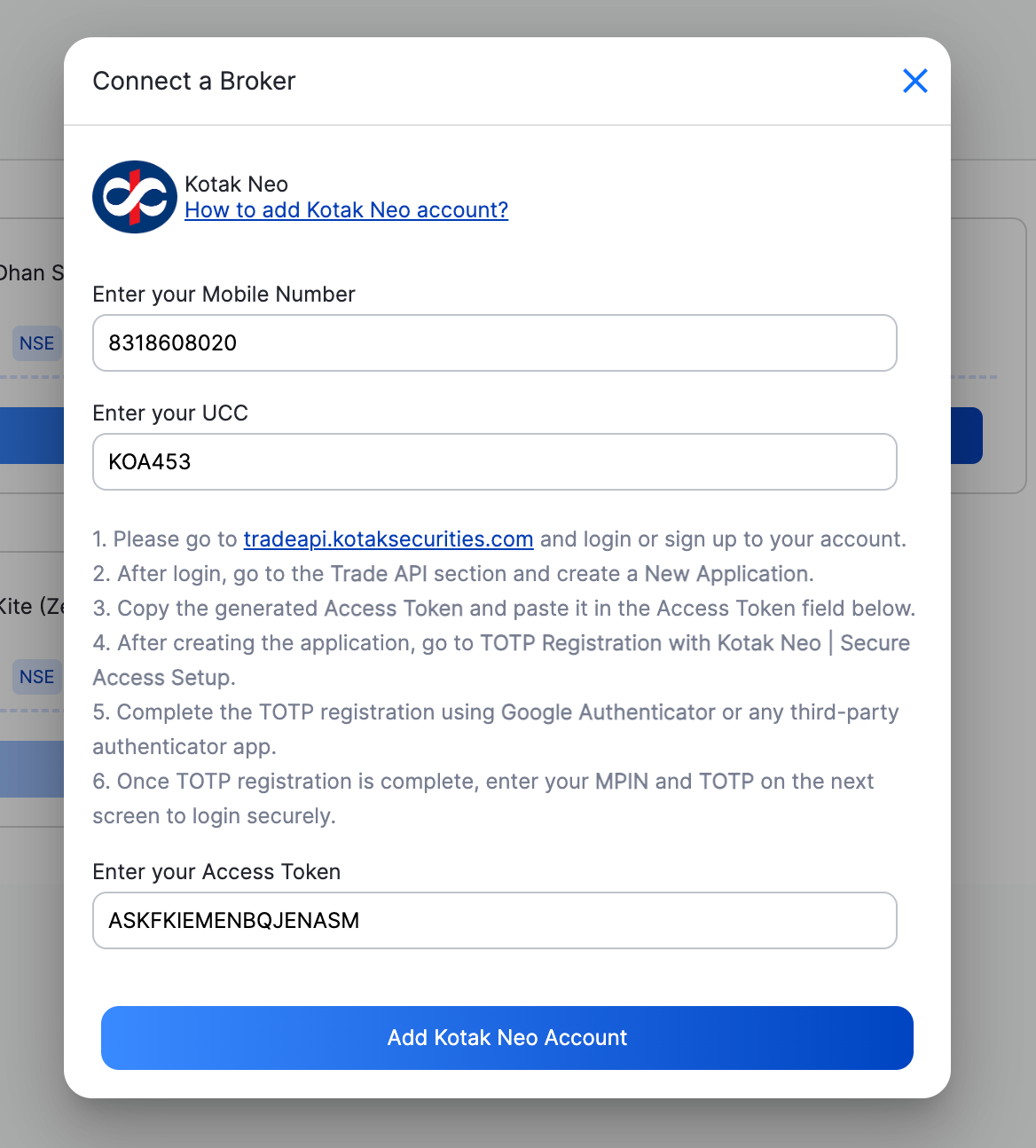
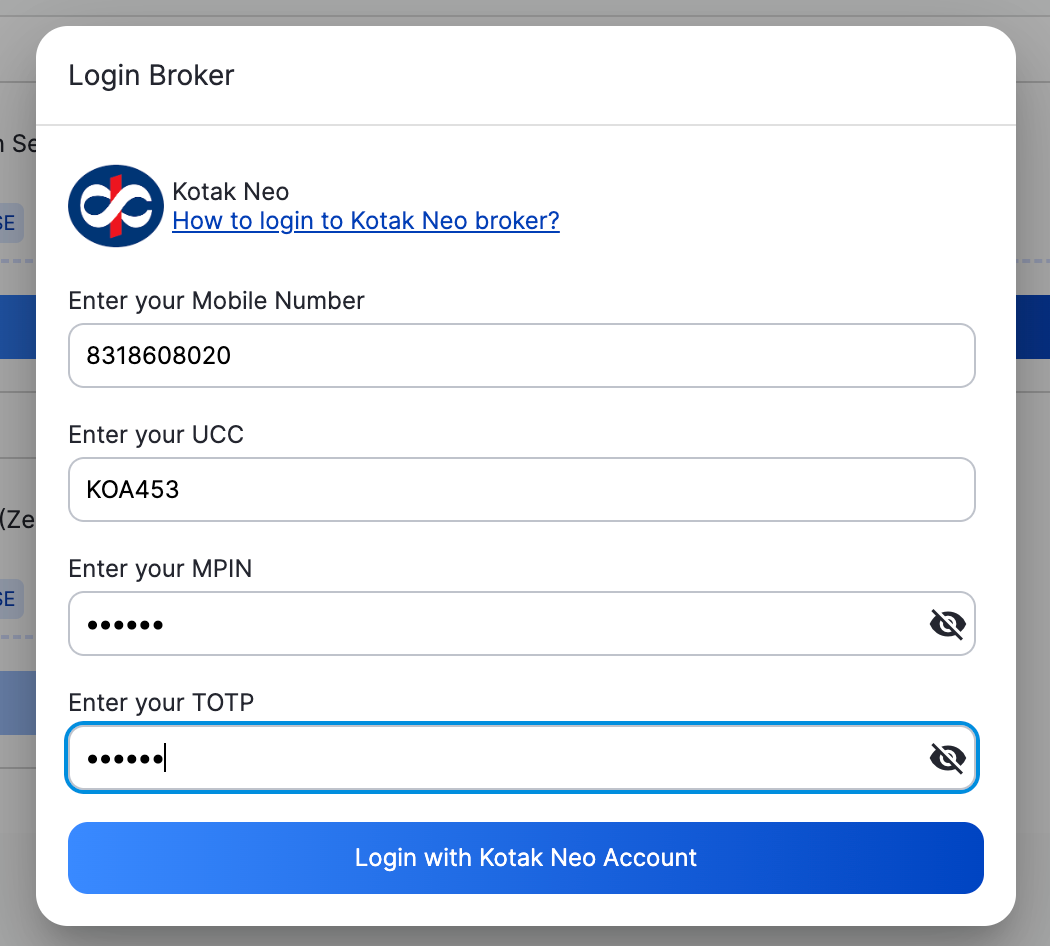
6. Enter a Connection Name, Registered Mobile Number with Kotak and your Kotak UCC, Paste the Access Token generated in Step 3.
7. Click on Add Kotak Neo Account to Save the details.
8. On the next screen, enter your MPIN and TOTP and click on “Login with Kotak Neo Account”.
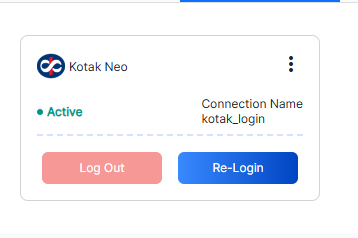
After successful authentication. Your Kotak account will now be linked and will appear under the Connected section in Manage Broker.
For more details, visit Kotak’s official website:
1. Go to uTrade Algos and log in to your account.
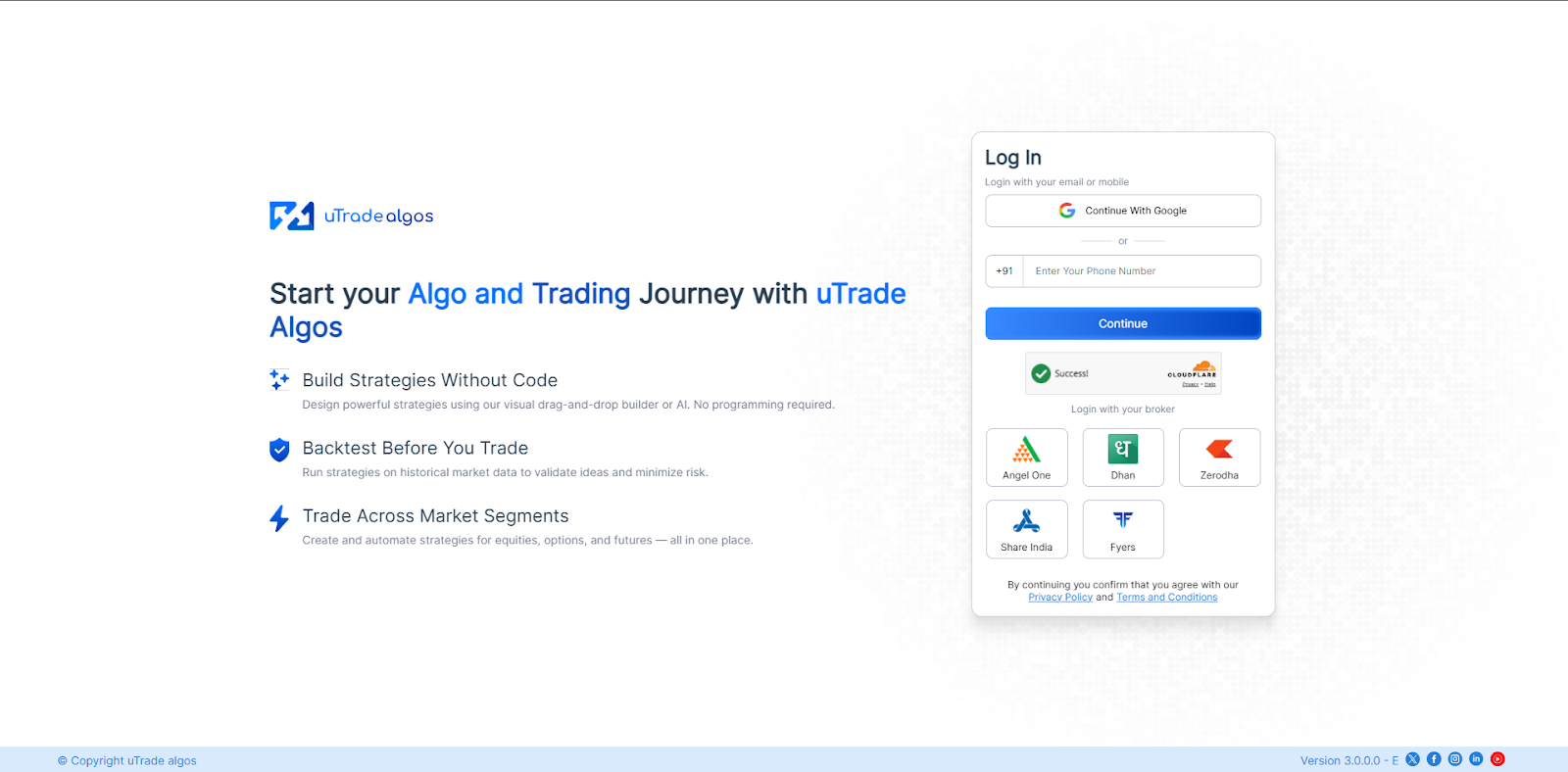
2. Click on the Profile icon at the top-right corner of the screen and select Broker Setup.

3. From the list of brokers, locate Fyers and click on the Setup button.
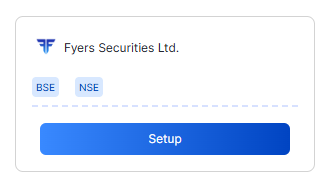
4. Enter a Connection Name and your Fyers Client ID, then click on Generate Redirect URL.
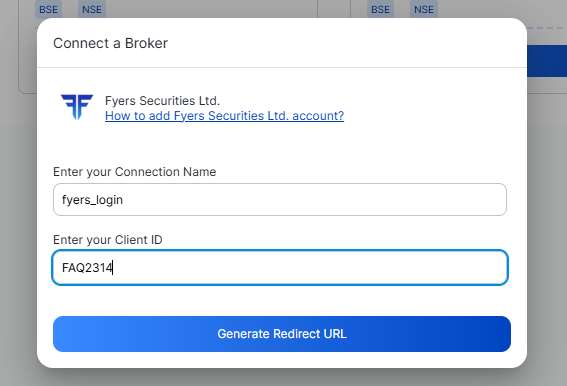
5. To generate your App ID and Secret ID, log in to the Fyers My API portal and create a new app.
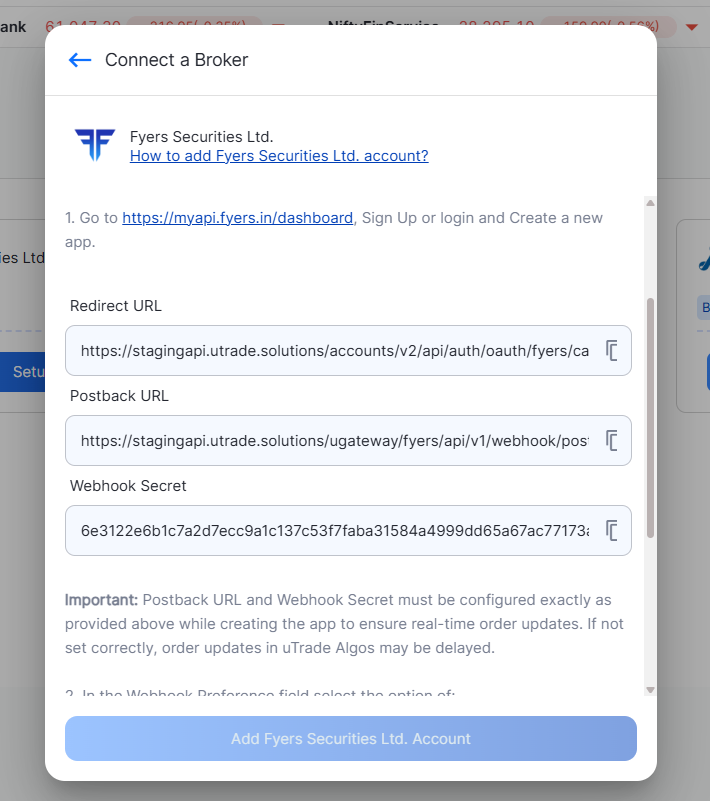
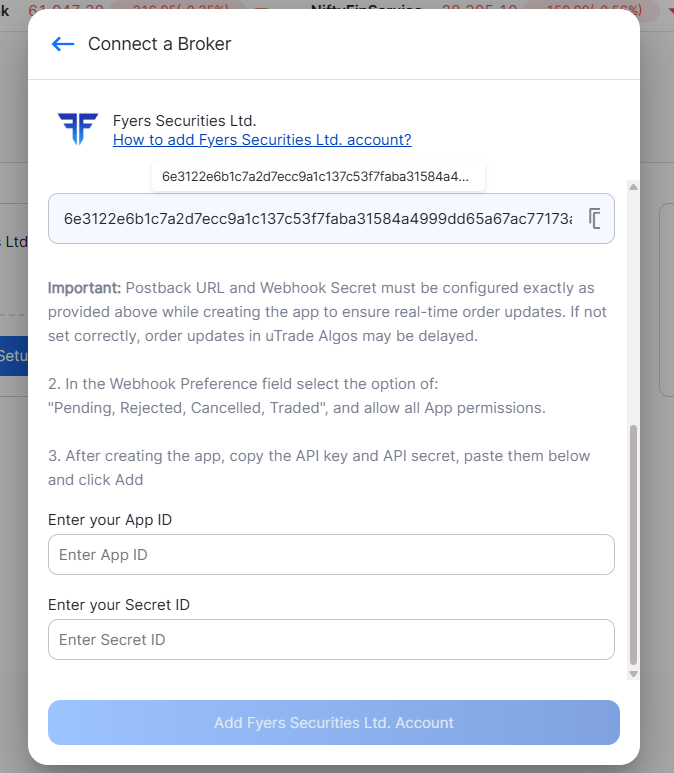
6. Click on Add Fyers Securities Ltd Account. You will be redirected to the Fyers login page.
7. Log in using your Fyers credentials and complete the authentication process.
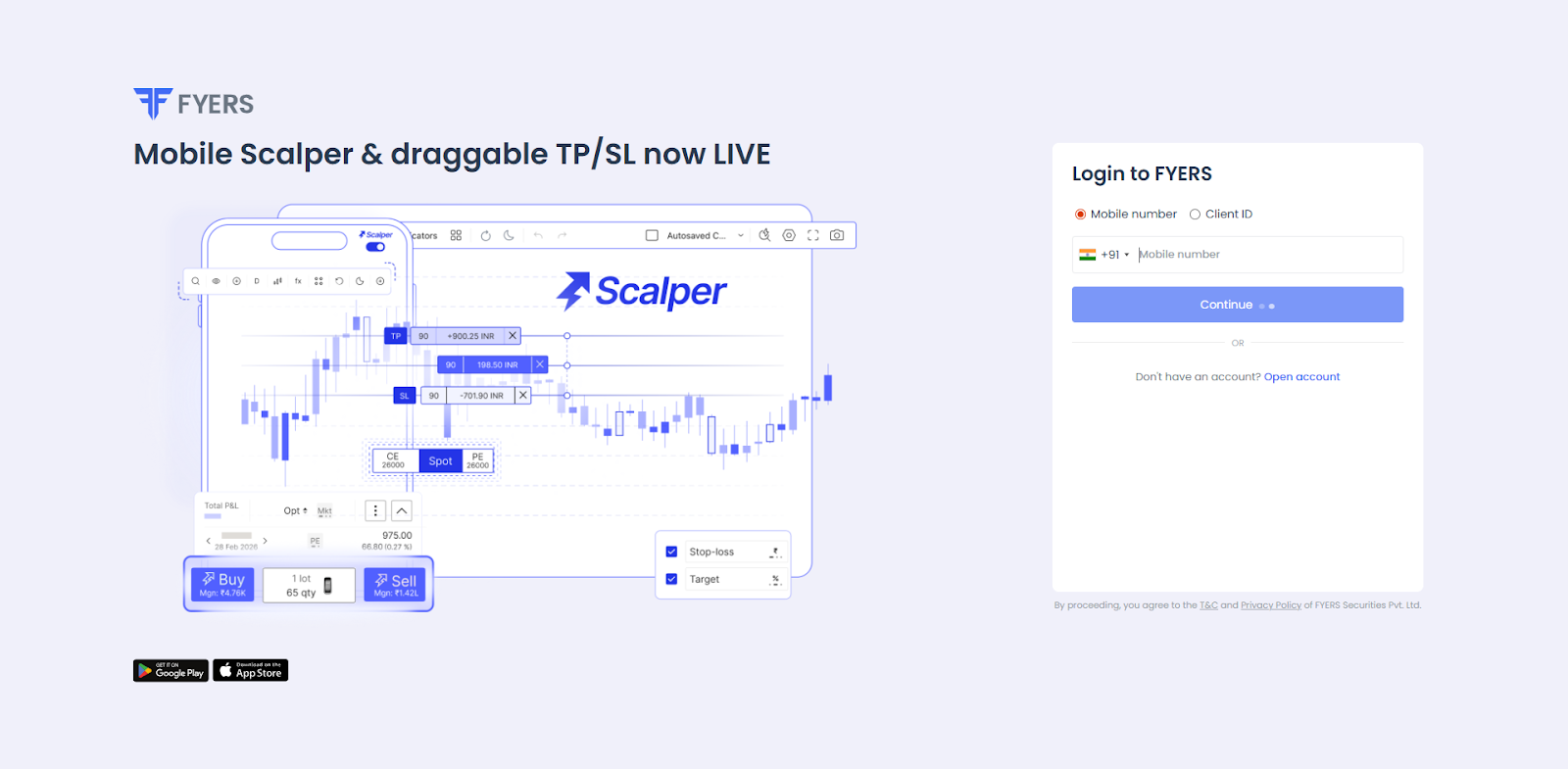
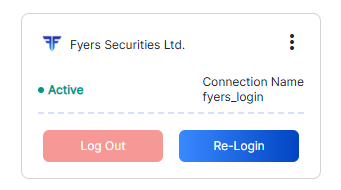
After successful authentication, you will be redirected back to uTrade Algos. Your Fyers account will now be linked and will appear under the Connected section in Manage Broker.
For more details, visit Fyers’ official website:
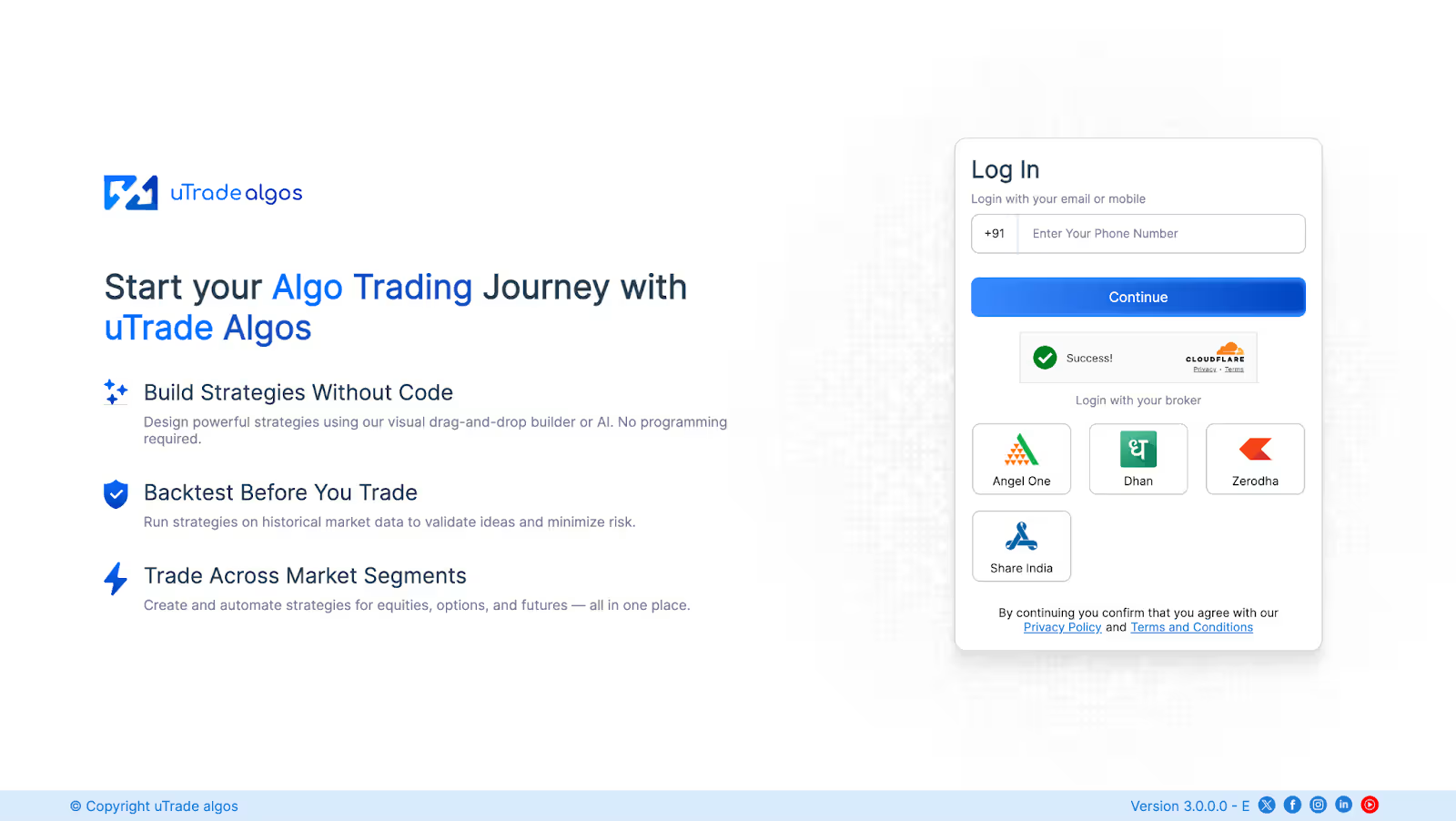
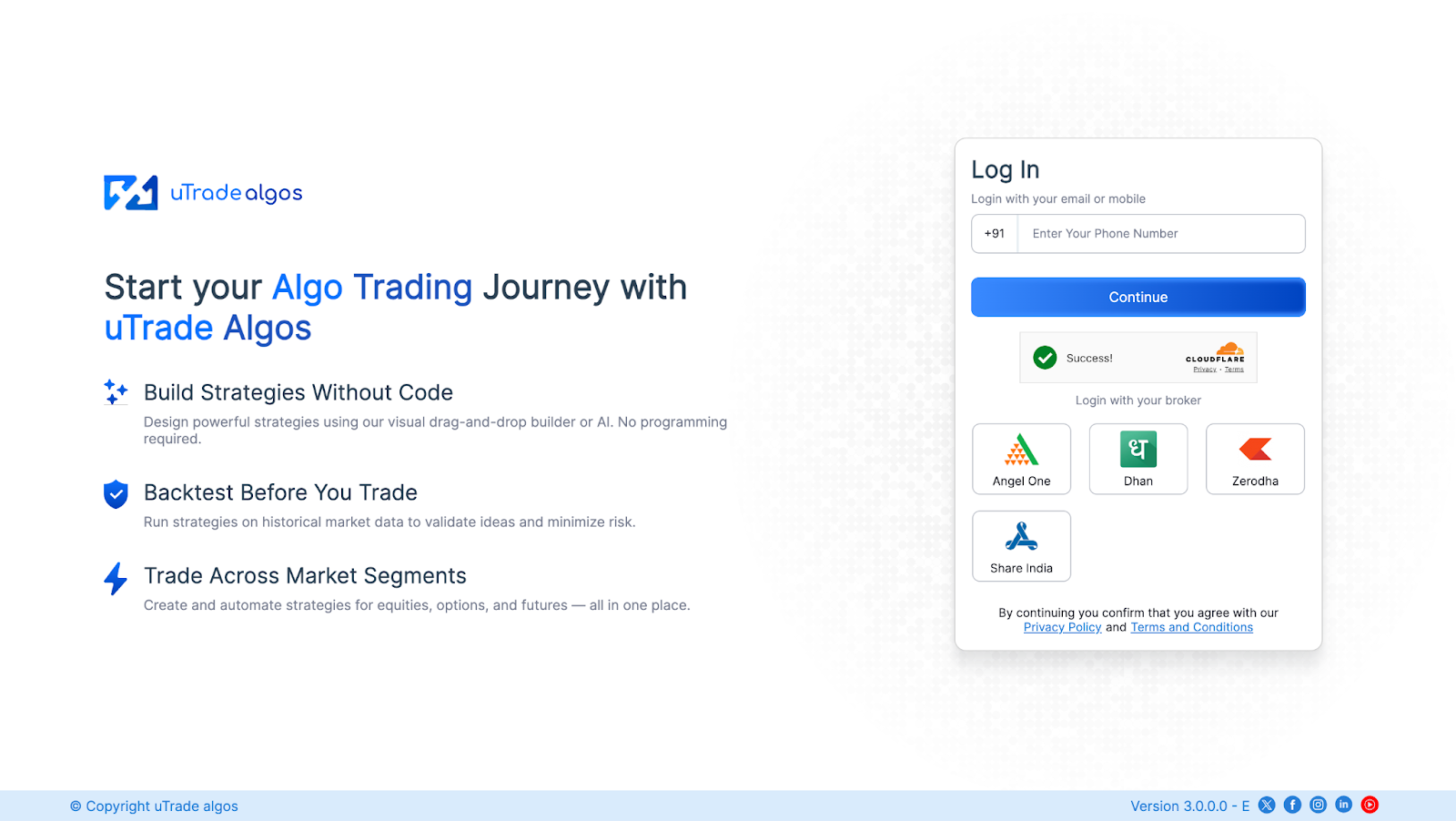
1. Go to uTrade Algos and log in to your account.
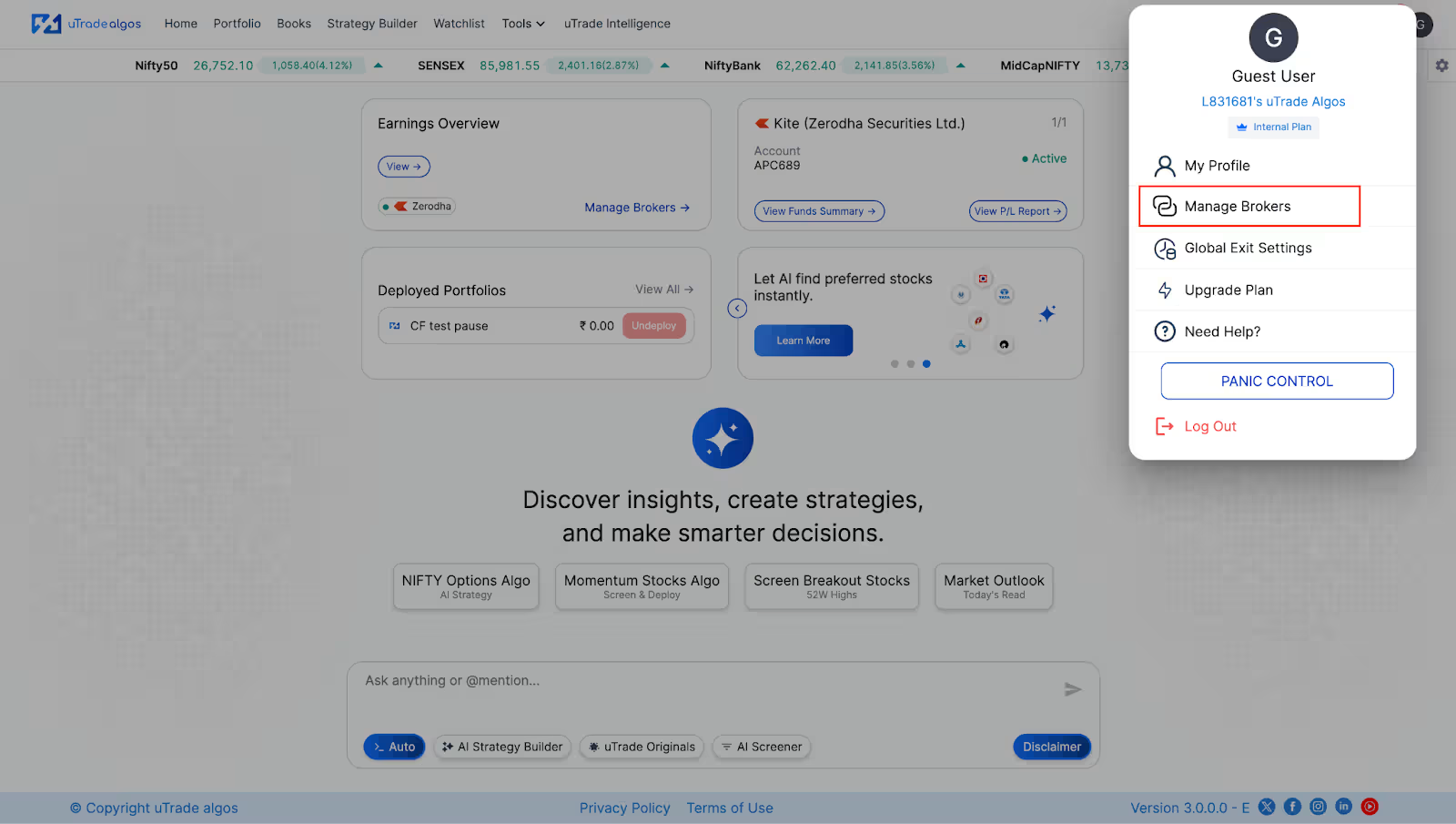
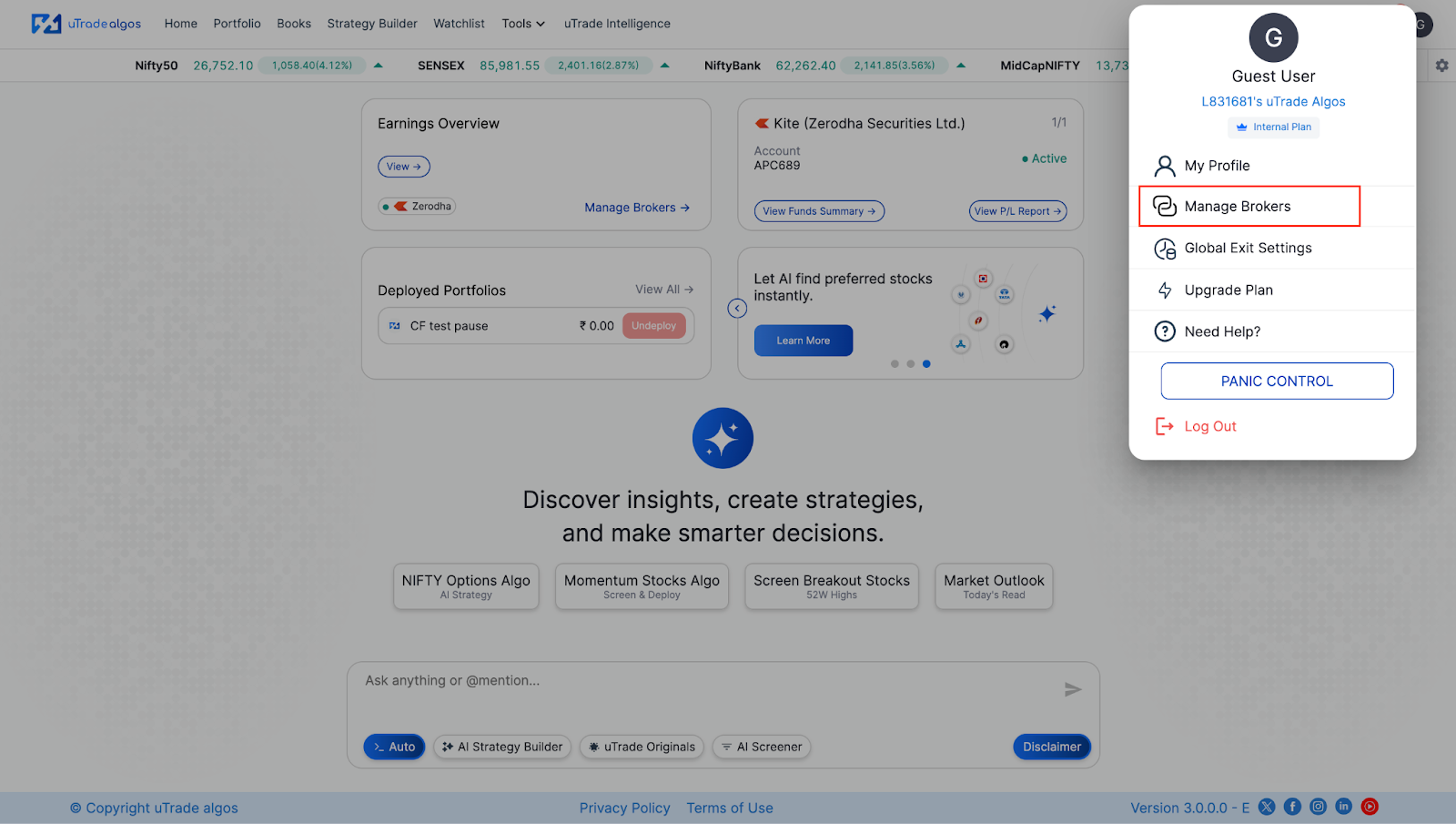
2. Click on the Profile icon at the top-right corner of the screen and select Manage Brokers.
3. Under the list of brokers, locate Angel One and click on the Setup button.

4. You will be redirected to the Angel One login page.
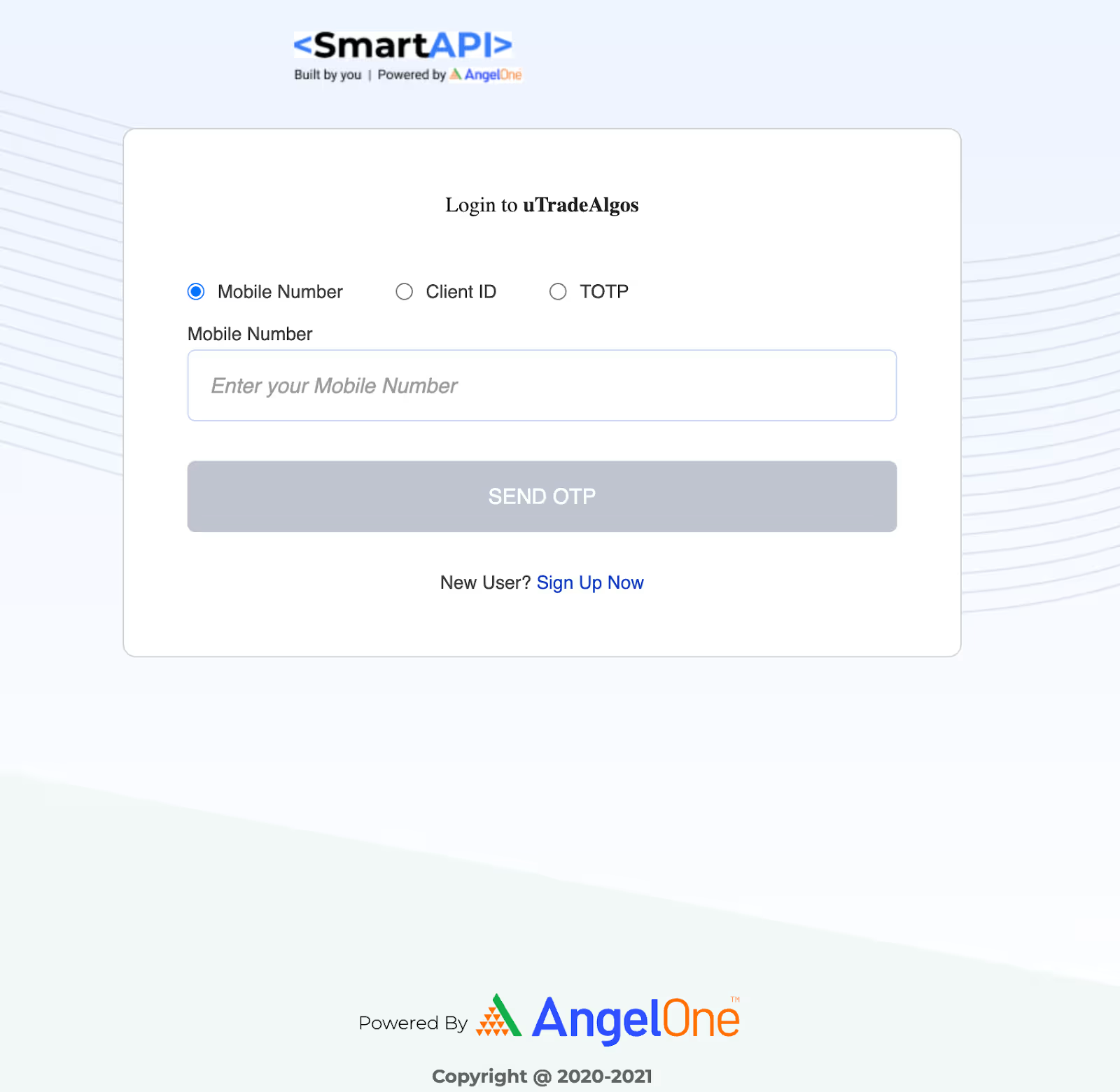
5. Enter the OTP/TOTP received on your registered device.
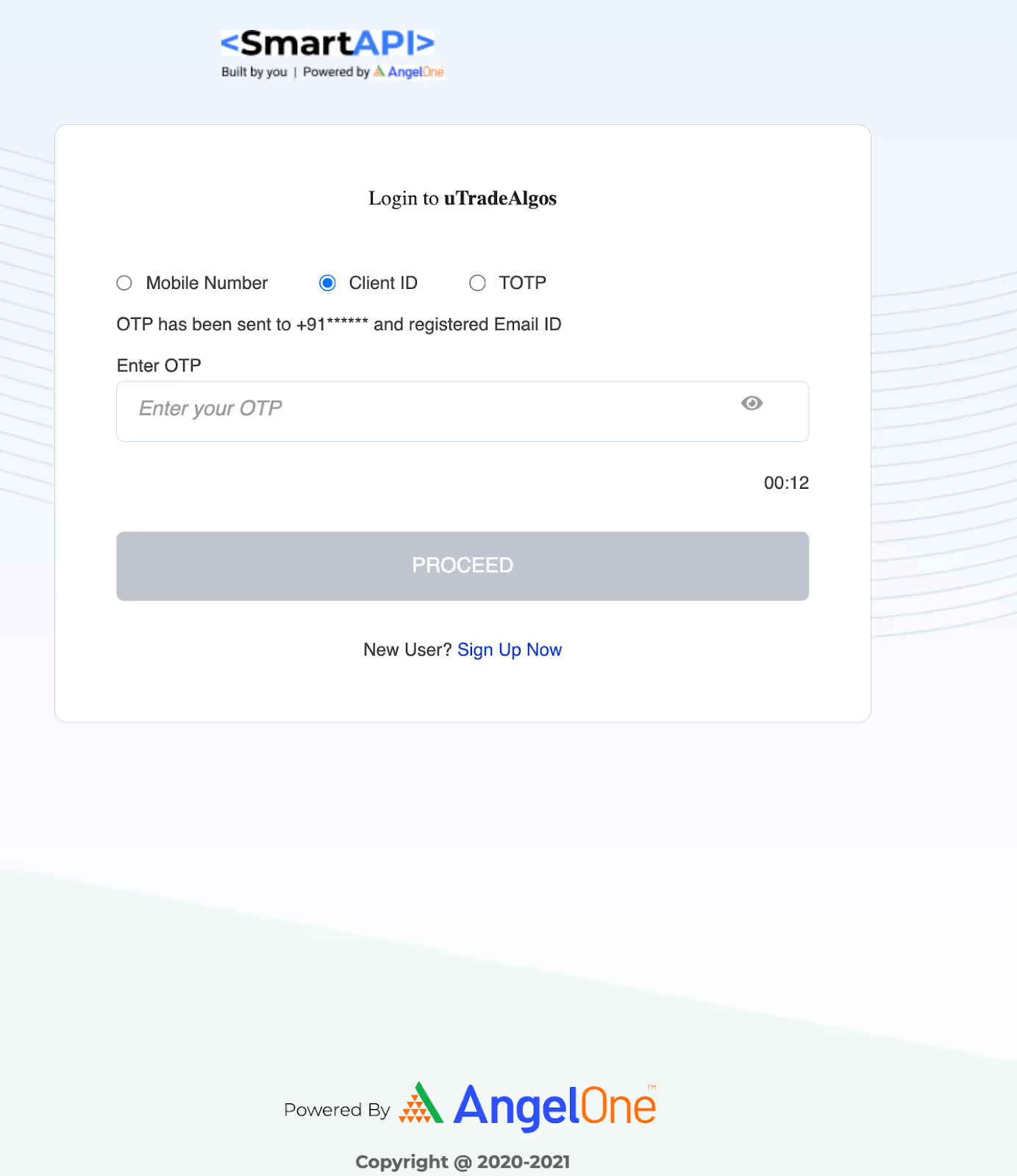
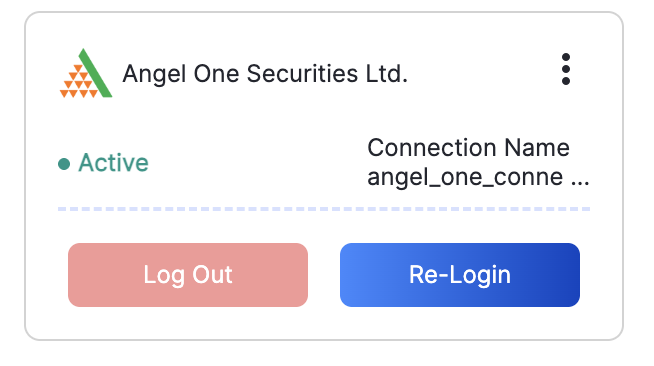
Once the process is successful, your Angel One account will be linked with uTrade Algos and will appear under the Connected section in Manage Broker.
For more details, visit Angel One’s official website:
2. Click on the Profile icon at the top-right corner of the screen and select Manage Brokers.
3. Under the list of brokers, locate Share India and click on the Setup button.
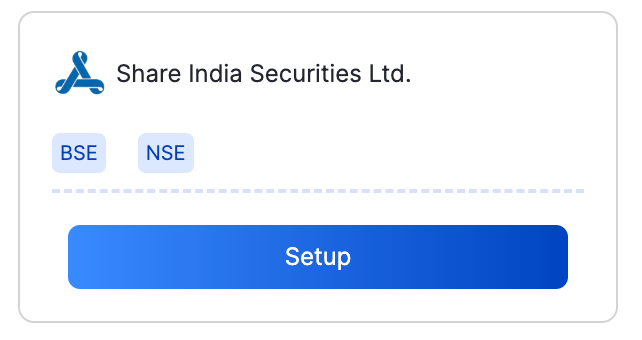
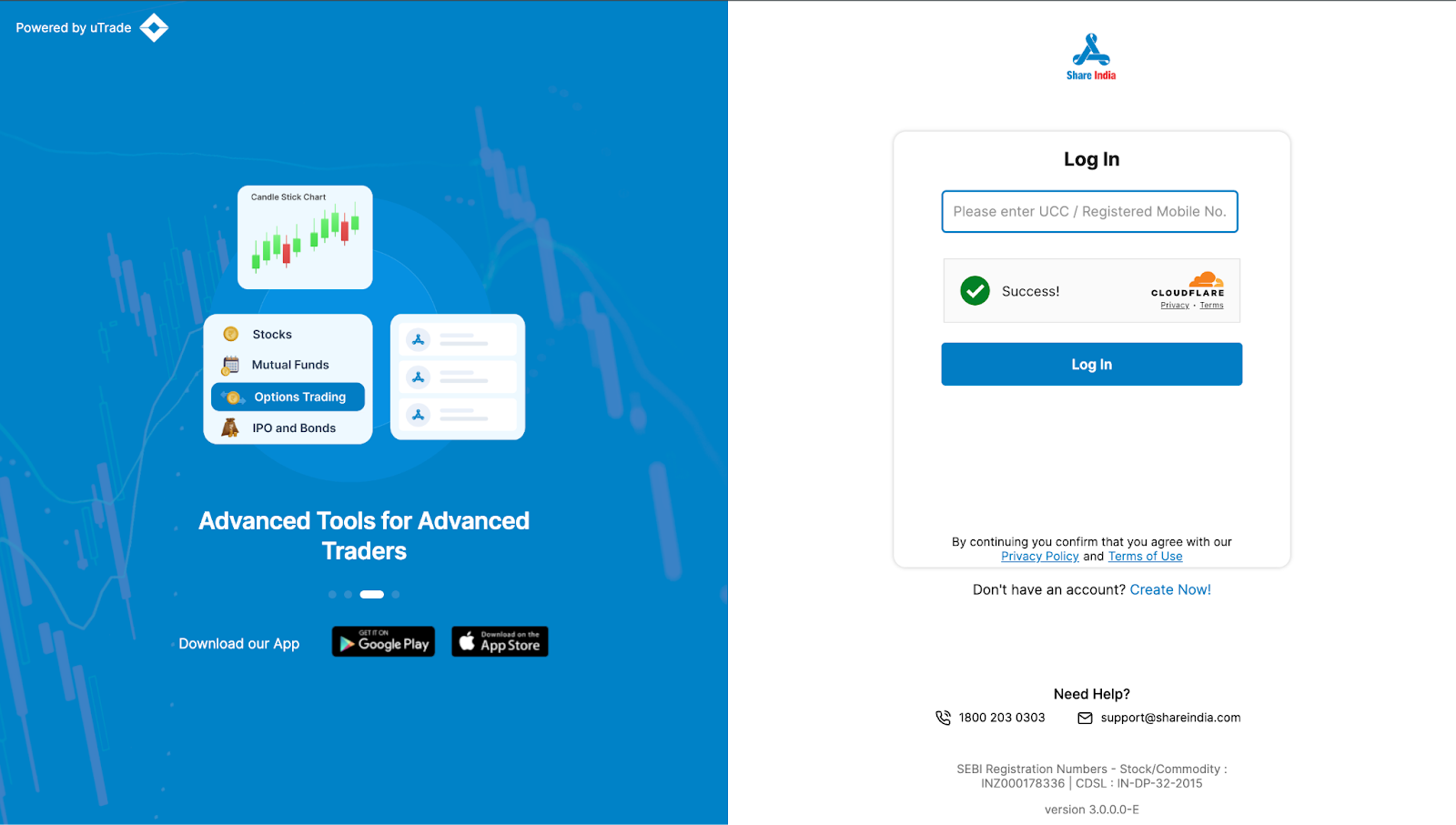
4. You will be redirected to the Share India login page.
Log in using your registered UCC / Mobile Number.
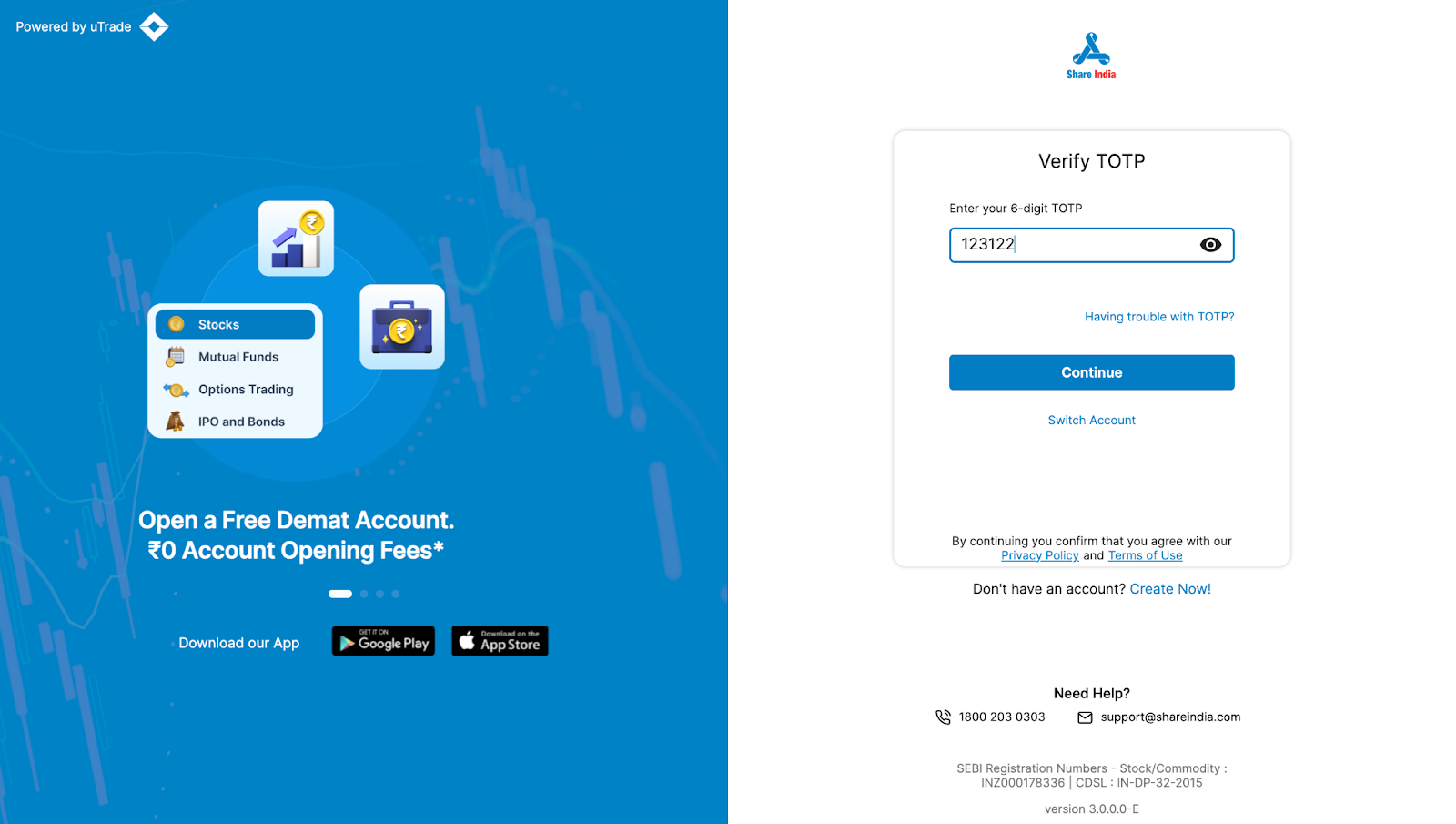
5. Enter the OTP / PIN received on your registered device.
Click on Proceed to complete the authentication.
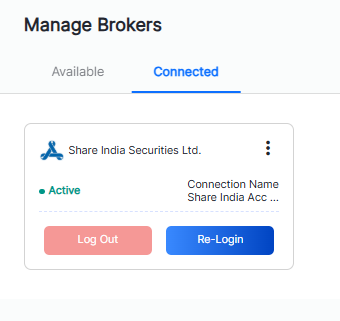
Once the process is successful, your Share India account will be linked with uTrade Algos and will appear under the Connected section in Manage Broker.
For more details, visit Share India’s official website:
1. Go to uTrade Algos and log in to your account.
2. Click on the Profile icon at the top-right corner of the screen and select Broker Setup.
3. From the list of brokers, locate Zerodha (Kite) and click on the Setup button.
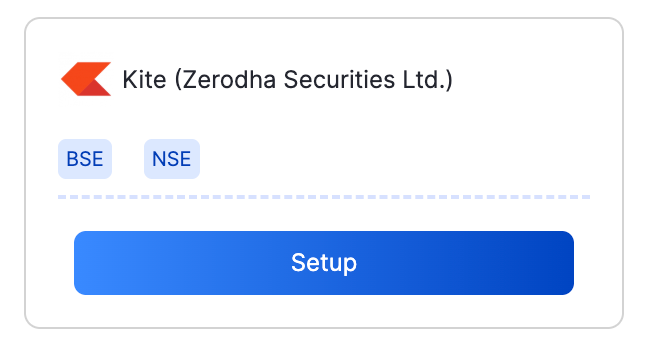
4. Enter a Connection Name and your Zerodha Broker ID, then click on Generate Redirect URL.
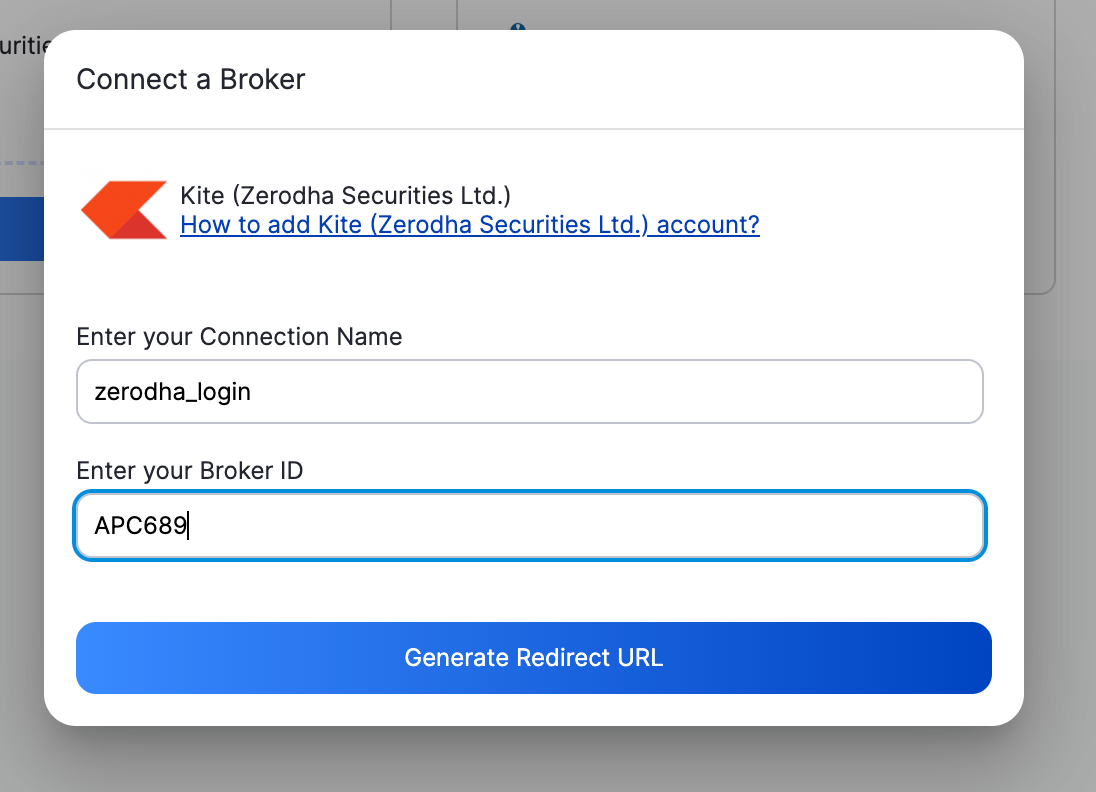
5. To generate your Zerodha API Key and API Secret, log in to the Zerodha developer portal and create a new app.
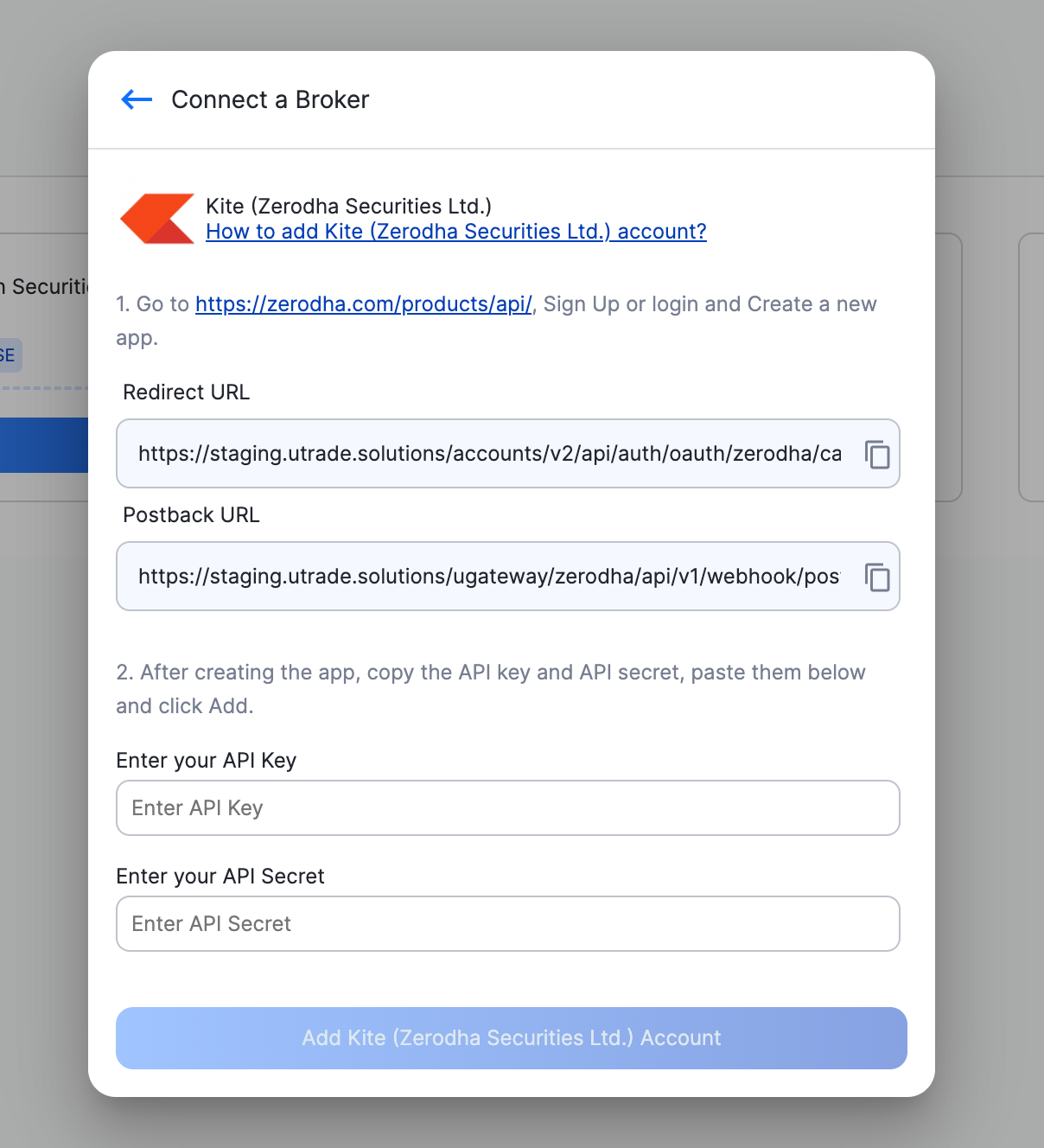
6. Click on Add Zerodha Securities Ltd Account. You will be redirected to the Zerodha (Kite) login page.
7. Log in using your Zerodha credentials and complete the authentication process.
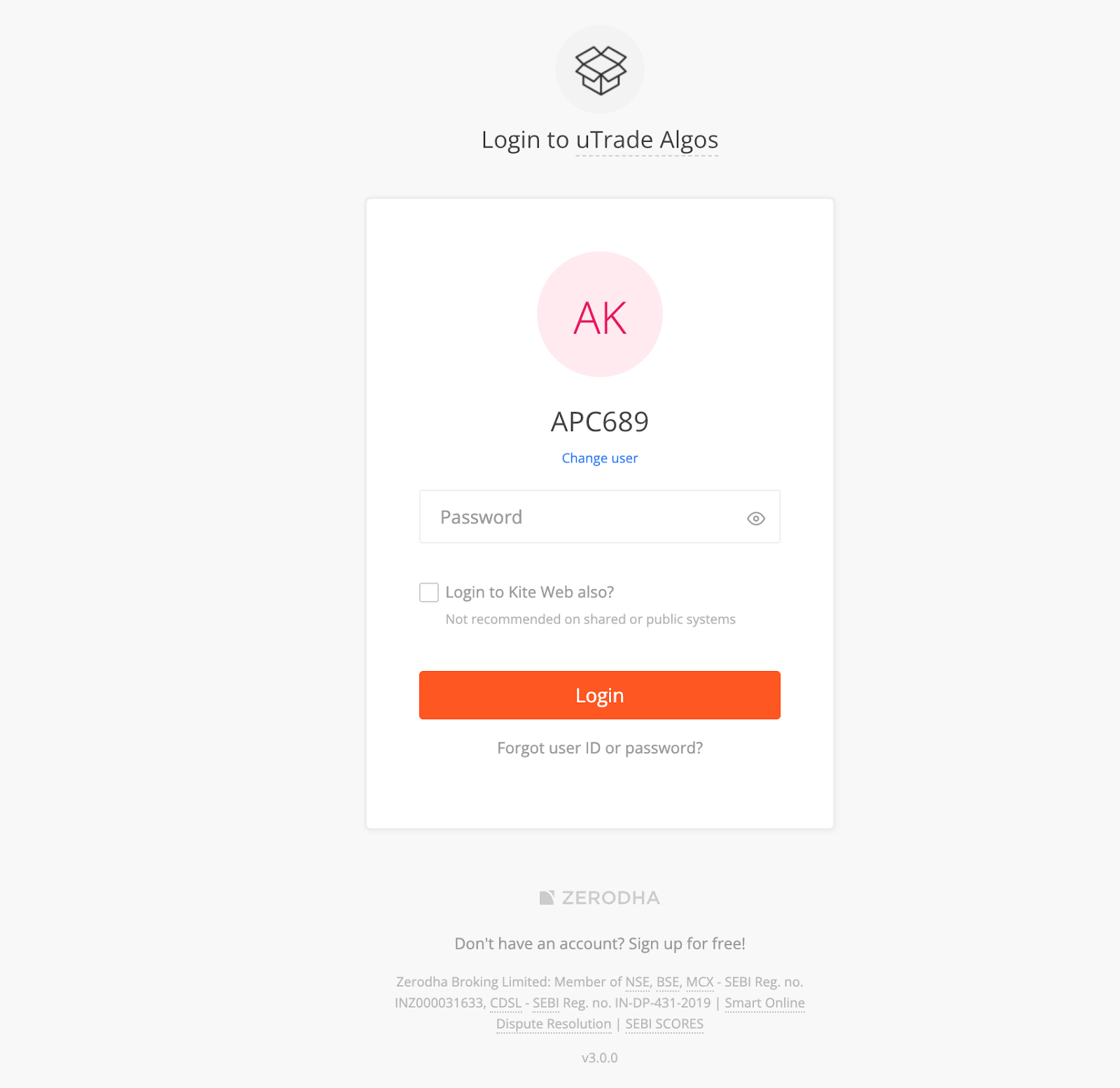
After successful authentication, you will be redirected back to uTrade Algos. Your Zerodha (Kite) account will now be linked and will appear under the Connected section in Manage Broker.

For more details, visit Zerodha’s official website:
1. Go to uTrade Algos and log in to your account.
2. Click on the Profile icon at the top-right corner of the screen and select Manage Brokers.
3. Under the list of brokers, locate Dhan and click on the Setup button.

4. You will be redirected to the Dhan login page.
Log in using your registered mobile number.
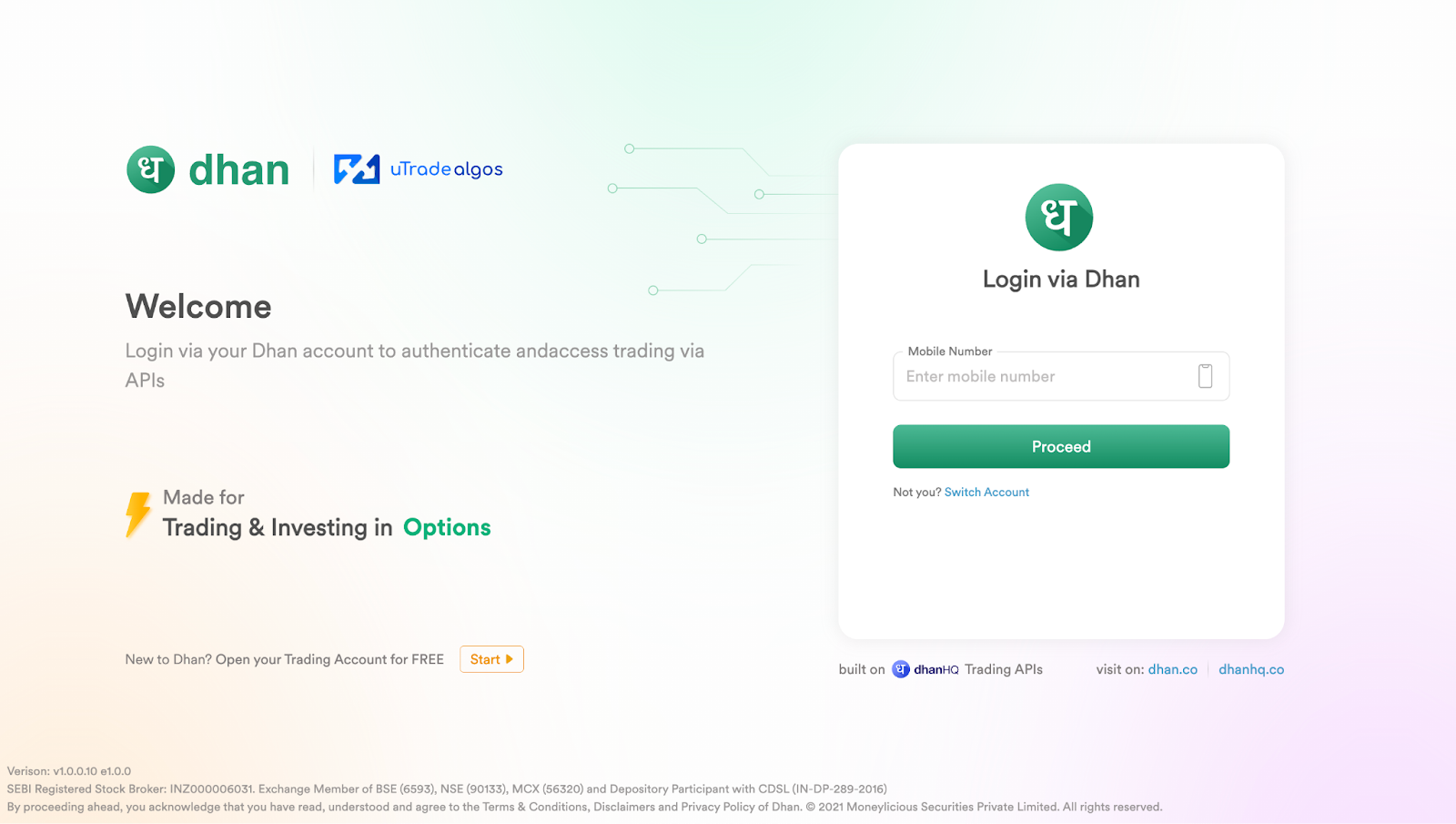
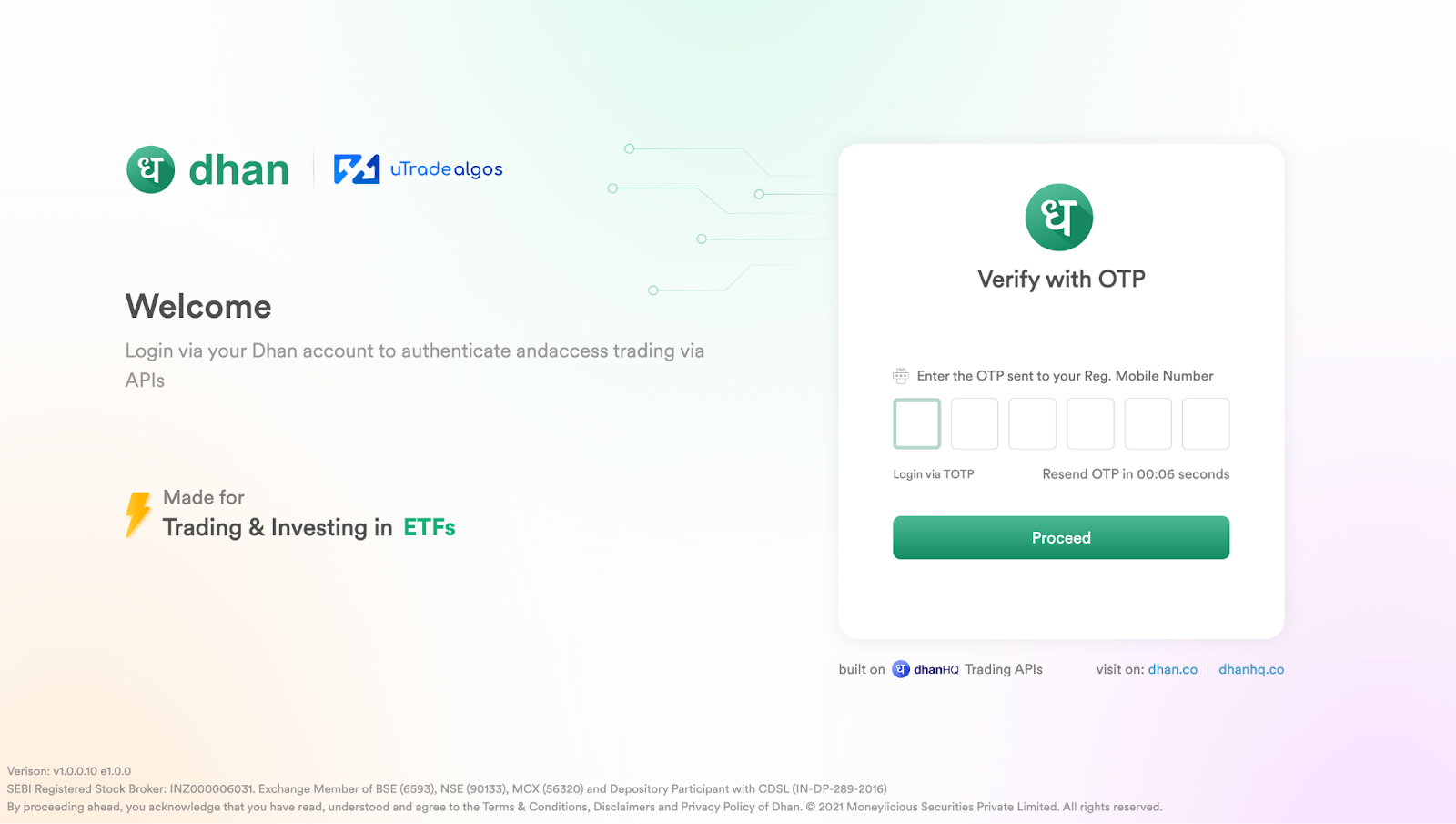
5. Enter the OTP/TOTP received on your registered mobile number/device & Click on Proceed to complete the authentication.
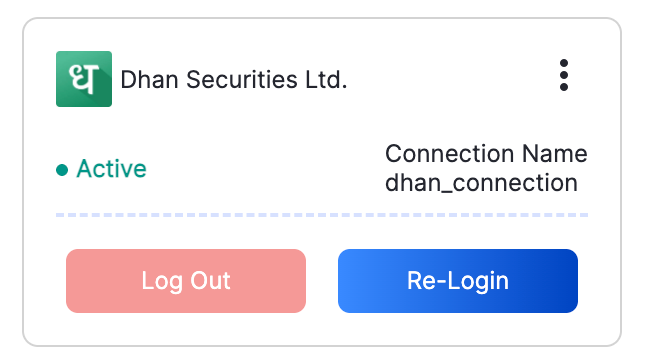
Once the process is successful, your Dhan account will be linked with uTrade Algos and will appear under the Connected section in Manage Broker.
For more details, visit Dhan’s official website:

.svg)





